> ## Documentation Index
> Fetch the complete documentation index at: https://rive-debug-panel.mintlify.site/llms.txt
> Use this file to discover all available pages before exploring further.
# Inspector
> View and edit properties for the current selection.
export const VideoEmbed = ({src}) => {
return
;
};
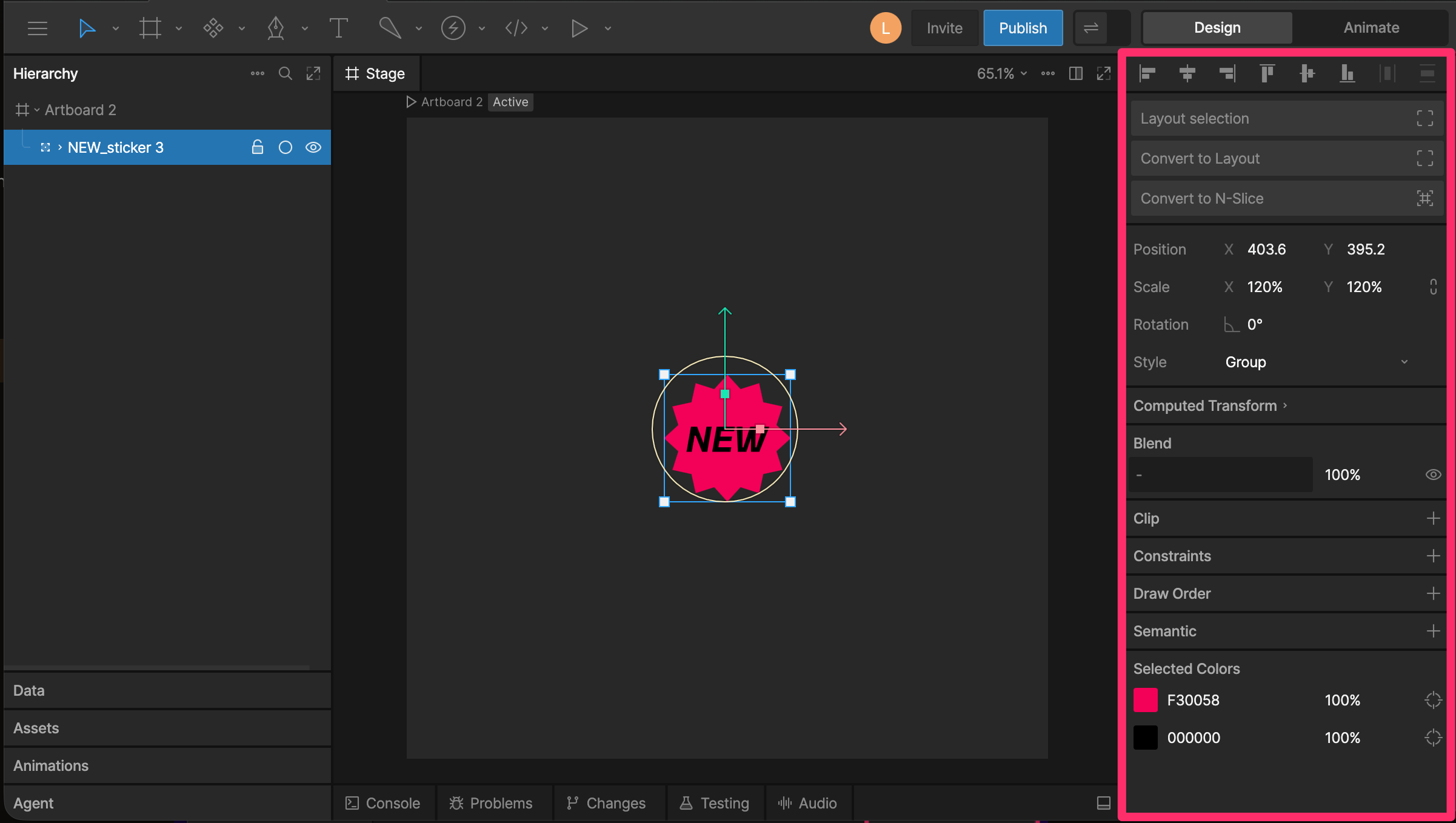
The Inspector is the right sidebar in the editor. It shows the available properties and options for the current selection.
 ## Selection Properties
When you select an element, the Inspector updates to show controls for that element.
For example, selecting an artboard, object, joystick, script, property group, or State Machine item shows different options based on what that element can do.
## File Properties
When nothing is selected, the Inspector shows file-level options.
These include:
* [Stage background colors](/editor/interface-overview/stage#stage-background-colors) for Design and Animate modes
* Scripting optimization and debug settings
* Shader targets
* [Tags](/editor/tagging)
* [Default interpolation](/editor/animate-mode/interpolation-easing#default-interpolation)
## Selection Properties
When you select an element, the Inspector updates to show controls for that element.
For example, selecting an artboard, object, joystick, script, property group, or State Machine item shows different options based on what that element can do.
## File Properties
When nothing is selected, the Inspector shows file-level options.
These include:
* [Stage background colors](/editor/interface-overview/stage#stage-background-colors) for Design and Animate modes
* Scripting optimization and debug settings
* Shader targets
* [Tags](/editor/tagging)
* [Default interpolation](/editor/animate-mode/interpolation-easing#default-interpolation)